Help · Pro features
Set up the emergency folder
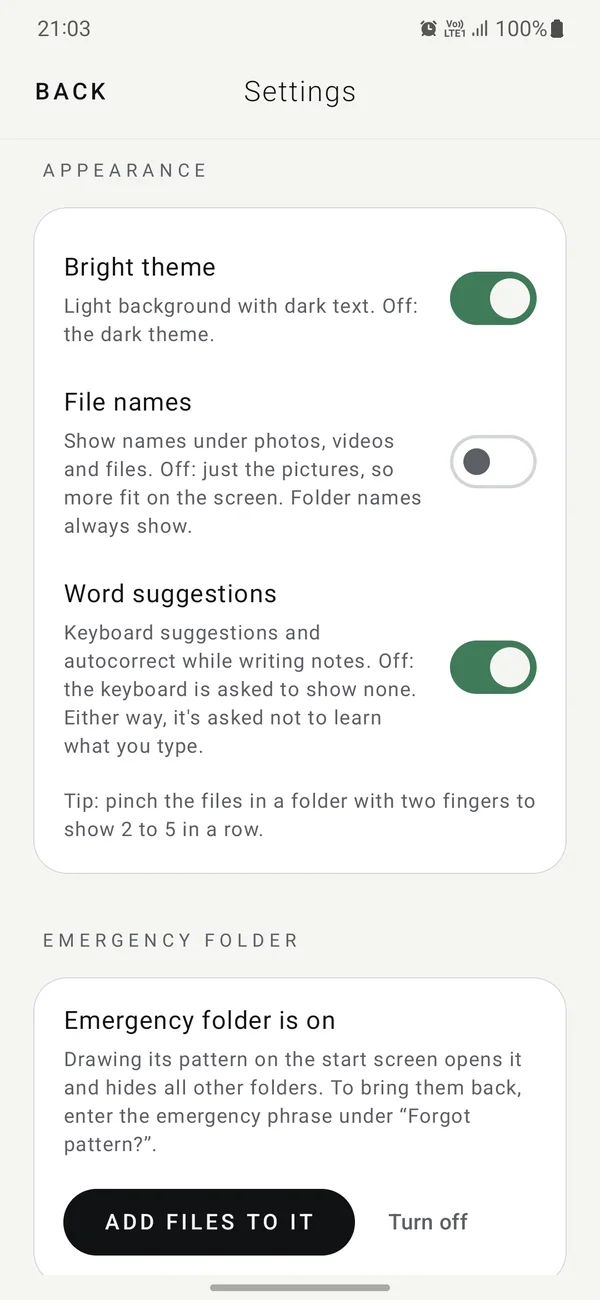
If someone forces you to open Vaultessa, draw the emergency folder's pattern. It opens a normal-looking folder and hides every other folder at once. Only your emergency phrase brings them back. Part of Vaultessa Pro.
Step by step
- Open Settings from a normal folder
Open any folder that isn't the emergency folder, then Menu › Settings, and tap SET UP under EMERGENCY FOLDER.
- Choose a 4-digit PIN
Enter it twice. You'll need it to add files to the emergency folder or to turn the feature off. The PIN doesn't open anything.
- Draw the emergency pattern
Draw it three times. It must be different from your other patterns.
- Give it an everyday name
Something like “Personal” or “Receipts”, so it looks like any other folder.
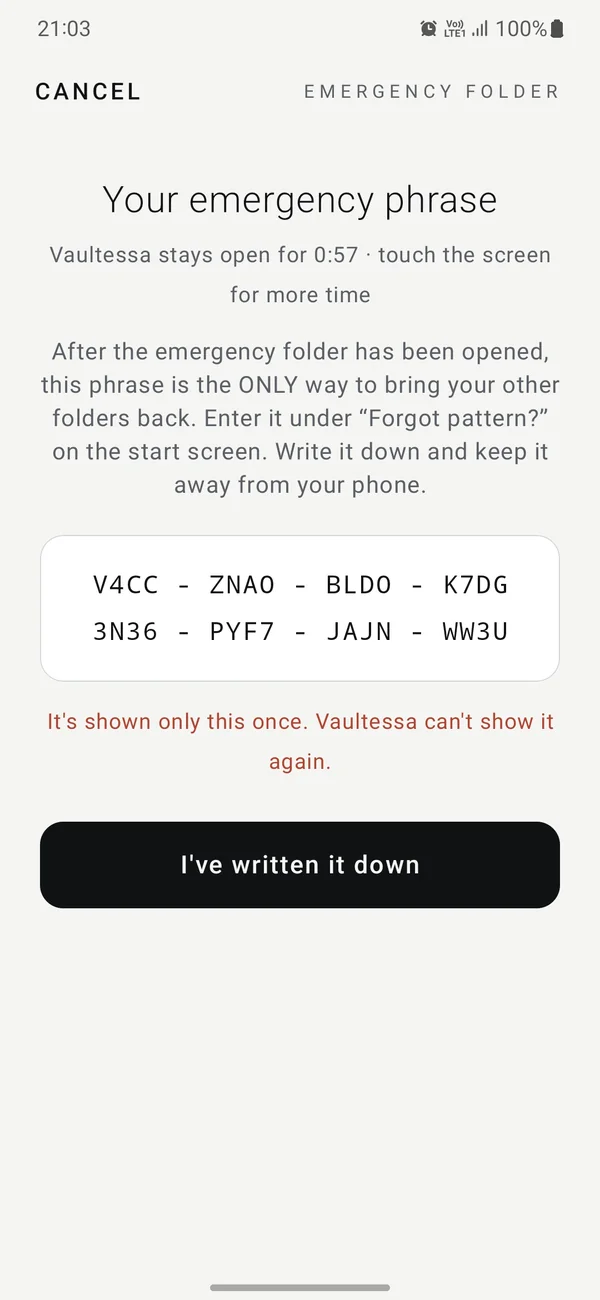
- Write down the emergency phrase
It's shown once. After the emergency folder has been opened from the start screen, this phrase is the only way to bring your other folders back. Keep it away from your phone.
- Put some everyday files in it
A folder with ordinary photos and documents looks real. Tap OPEN IT NOW, or later use ADD FILES TO IT in Settings with the PIN. Opening it from Settings never hides anything.
When you need it
- Draw the emergency pattern on the start screen. The emergency folder opens and every other folder is hidden at once.
- Inside the emergency folder, Settings doesn't show that the feature exists.
- To bring everything back, tap Forgot pattern? on the start screen and enter the emergency phrase. Your folders open with their usual patterns again.
- If a folder comes back without its pattern, the start screen shows A folder needs its recovery code. Enter that folder's own recovery code there.
Use Turn off in Settings and enter the PIN. Bring any hidden folders back first.
Why it works this way: Emergency folder: a vault for when you're forced to open it.
Need more help?
See all help topics, or write to [email protected]. We can't open folders or recover codes, but we're glad to explain anything.