Help · Start here
Get started with Vaultessa
Your first private folder takes about a minute: a pattern, a name and a recovery code. Here's every step.
New pattern — draw it 2 more times (1 of 3)
Forgot pattern?
Step by step
- Read the introduction
The first time you open Vaultessa, four short screens explain how it keeps your files. Tick the three boxes and tap Start using Vaultessa.
- Draw your first pattern
Connect at least 8 dots on the grid. Because there are no folders yet, Vaultessa starts a new one and asks you to draw the same pattern two more times. Leave no more than 10 seconds between drawings, or it says Too slow — start again. If a drawing doesn't match, you start again from the first one.
Pick something easy for you to draw but hard to guess: avoid straight lines, letters and simple shapes, and don't draw where someone can watch.
- Name the folder
Type a name and tap Create. Only you see it; the name is encrypted too. You can rename the folder later by tapping its name at the top.
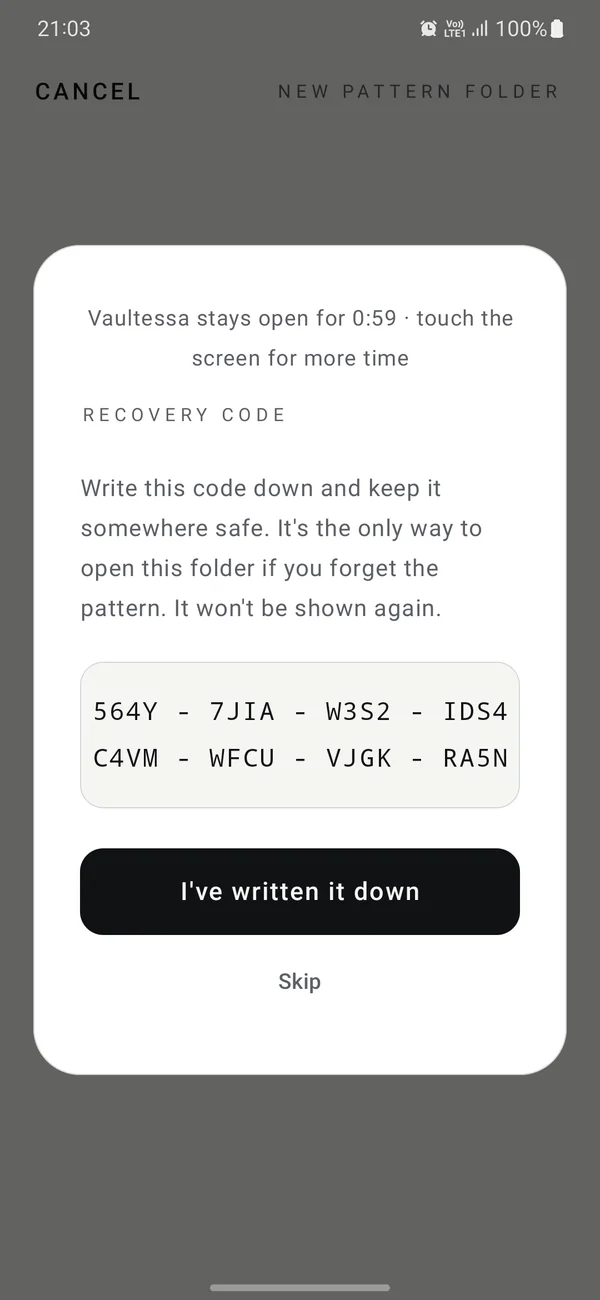
- Write down the recovery code
Vaultessa shows a 32-character code once. It's the only way into this folder if you forget the pattern, and you need it to restore a backup.
Write it on paper or save it in a password manager, and keep it away from the phone. Then tap I've written it down. There's a Skip button, but if you skip, a forgotten pattern means this folder is lost.
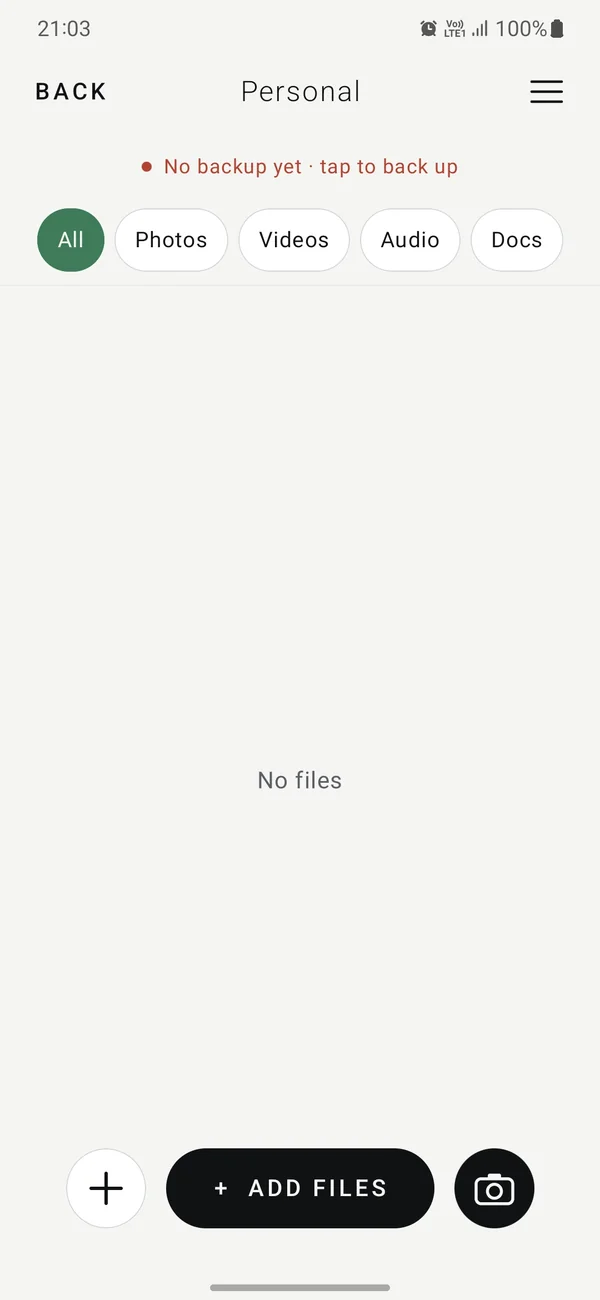
- Add files
Tap + ADD FILES and pick photos, videos, music, recordings or documents. Your Gallery and Google Photos are listed in the picker's side menu. Vaultessa saves an encrypted copy inside the folder.
The original stays where it was. To hide it, delete it from your gallery or Files app yourself, and also empty the gallery's “Recently deleted” or trash.
- Lock and open again
Vaultessa locks as soon as you leave the app or the screen turns off, and after 10–60 seconds without touching the screen (choose the time in Menu › Settings › Screen lock). To open the folder again, draw its pattern on the start screen.
After 5 wrong patterns, Vaultessa makes you wait 3 minutes. Each further round of 5 doubles the wait. If you've forgotten the pattern, use the recovery code instead: see Forgot your pattern?
Avoid simple shapes like L, U, Z or a square. See Choose a strong pattern.
Make your first backup. Until you do, your files exist only on this phone.
Need more help?
See all help topics, or write to [email protected]. We can't open folders or recover codes, but we're glad to explain anything.